
When you wish to pass the ID of a selected item from a sub-grid Ribbon Workbench (RWB) button, there are a few key differences from passing the ID of an item in the main ribbon. This guide will walk you through the process.
The Scenario
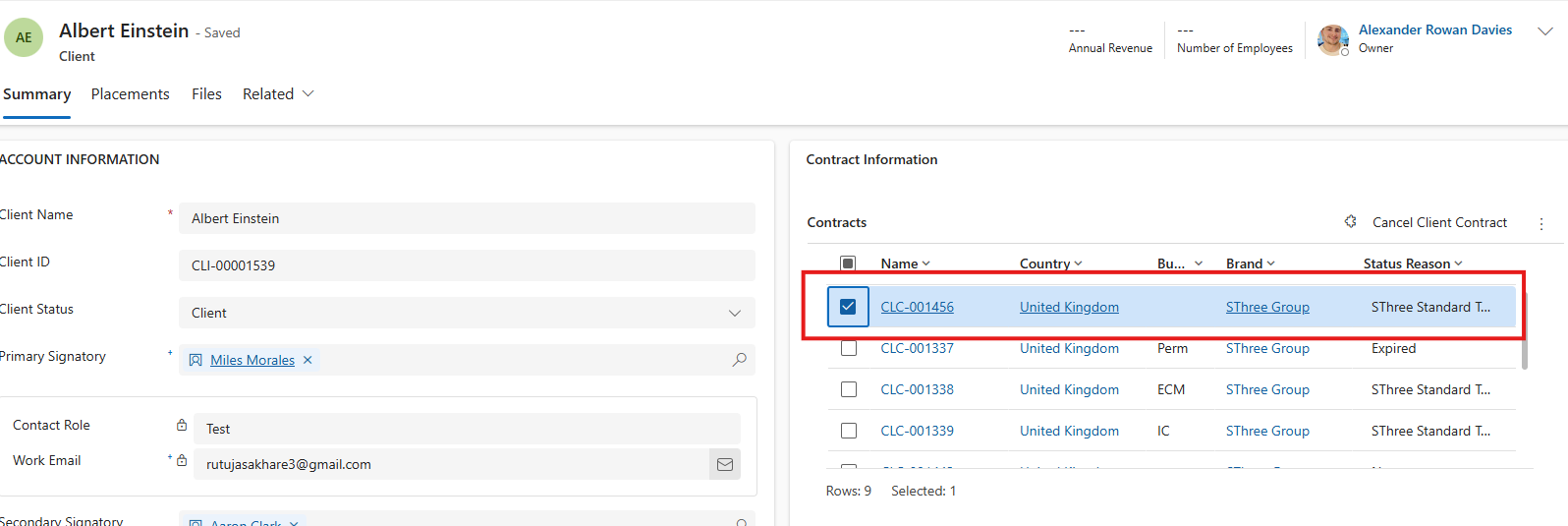
In this example, I want to pass the ID of a selected contract item displayed in a sub-grid on the client (entity) form.
Passing ID from the Main Form
If the button was on the main form (i.e., you wanted to pass the ID of the record you’re currently viewing), you might use code similar to this in a JS web resource:
async function openCancelButtonDialog (primaryControl) {
    var formContext = primaryControl;
    var contractID = formContext.data.entity.getId();
    var dialogTitle = "CLM - Cancel Client Contract";

    Xrm.Navigation.navigateTo({
        pageType: "custom",
        name: "sthree_mycustomPage",
        entityName: clientContract,
        recordId: contractID
    }, {
        target: 2,
        width: 620,
        height: 210,
        title: dialogTitle
    }).then(...).catch(console.error);
}
Then use the Ribbon Workbench to target the action, passing the Primary Control Parameter:
Reading the Record ID in Your Canvas App
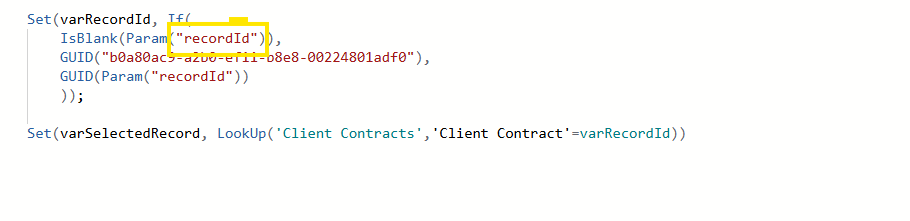
On app start of your canvas app, use code similar to this to read in the record ID:
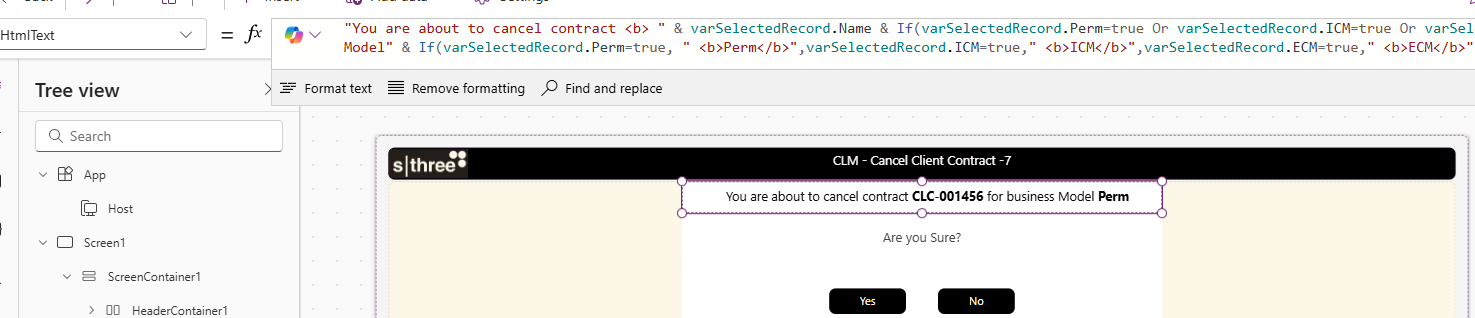
Tip: Hardcoding a GUID of a record is useful for testing in the editor, especially when you want to target fields of the record and display them in galleries, labels, etc. In the code above, I set a variable varSelectedRecord to the retrieved record from the table client contracts.
You can then target the fields using varSelectedRecord.fieldname:

Tip: You can also set a variable to a view if you wish to show filtered items in a gallery. This way Dataverse does all the heavy lifting with filtering, and you just point the gallery items at the variable:

Passing ID from a Sub-Grid Selection
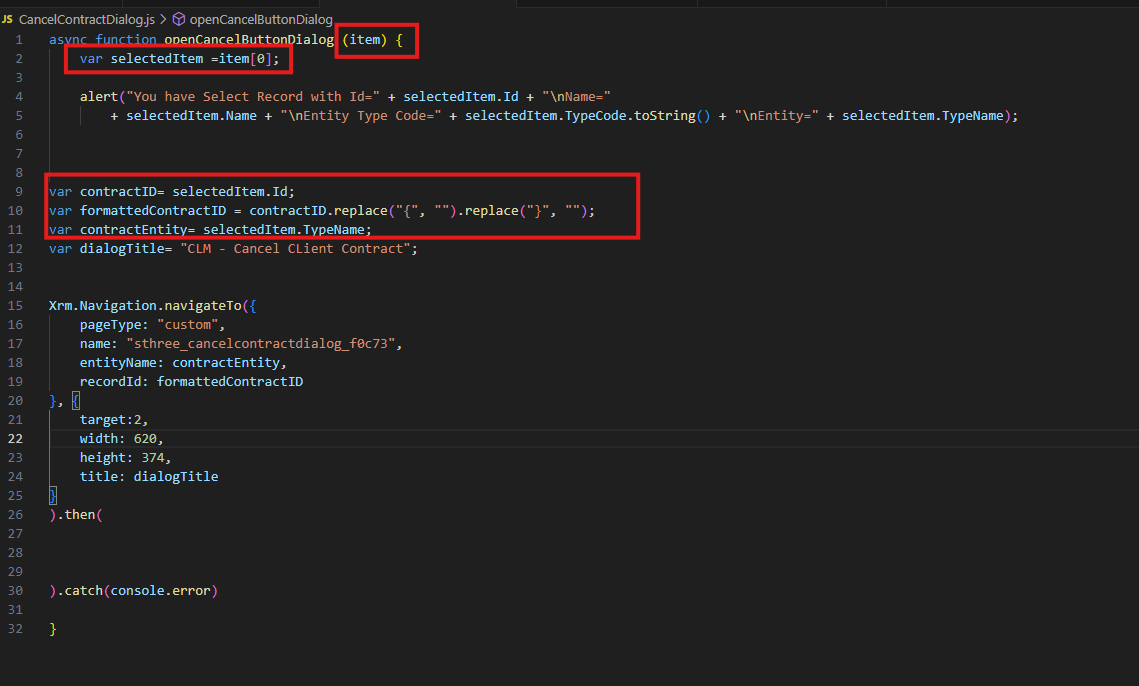
For a selected item in a sub-grid, there are key differences:
1. JavaScript Code Changes
Notice that we’re passing in the item parameter and setting a variable to the first item [0]:
var selectedItem = item[0];
var contractID = selectedItem.Id;
var contractEntity = selectedItem.TypeName;
2. Ribbon Workbench Configuration
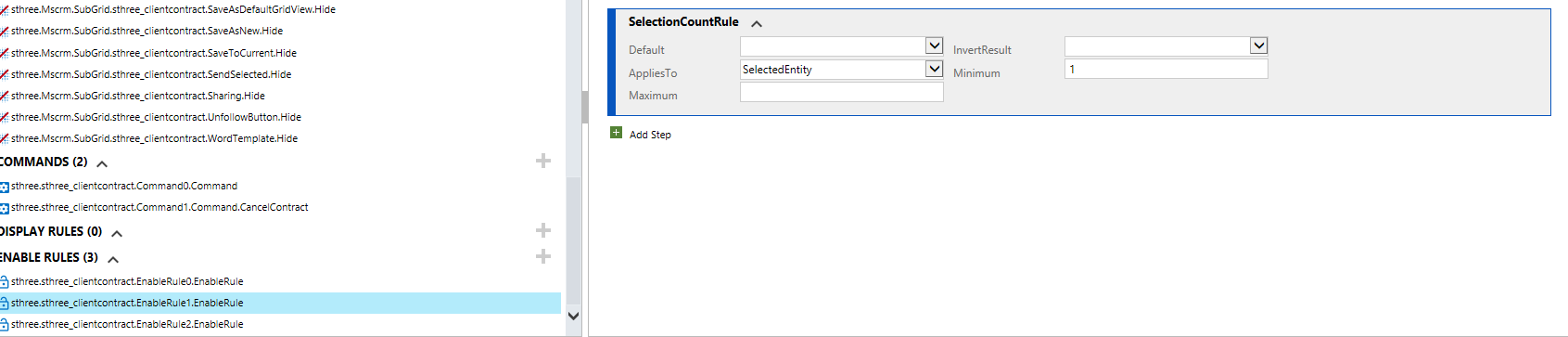
Enable Rule: Create an enable rule with a SelectionCountRule to ensure at least one item is selected:
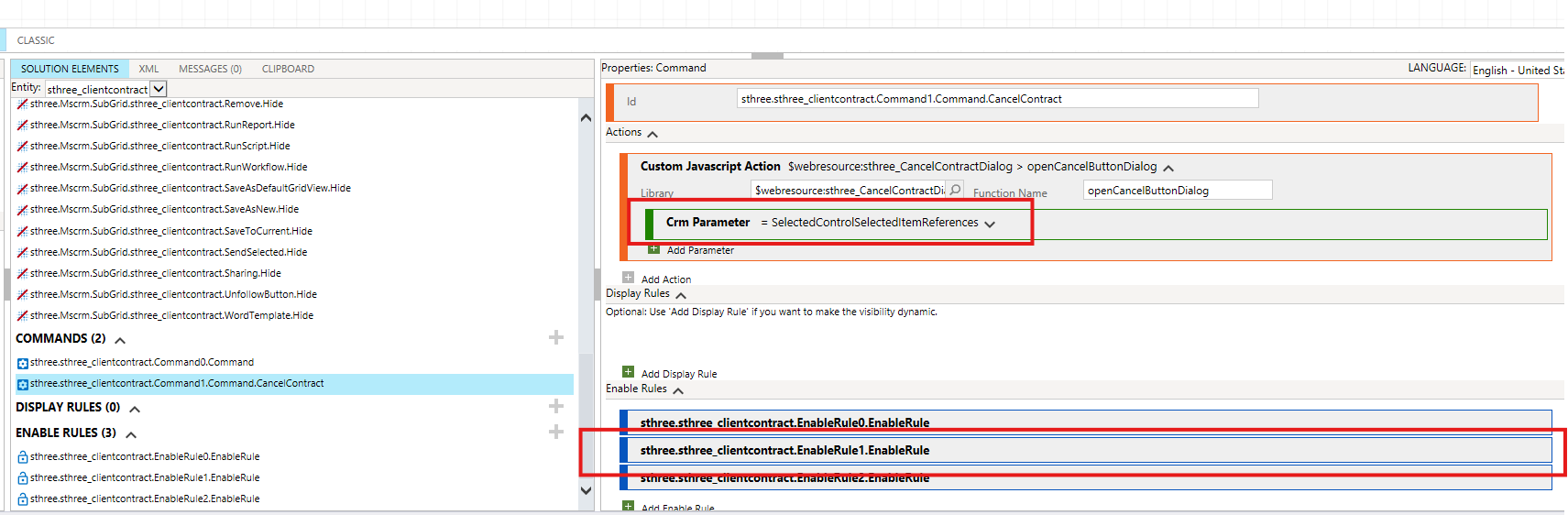
Command Setup:
- Attach the enable rule to the command
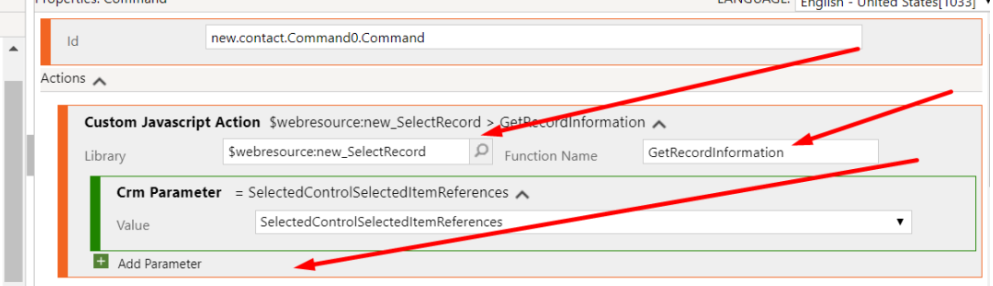
- Create a JavaScript action targeting your JS library and function name
- For the CRM parameter, select SelectedControlSelectedItemReferences
Testing
You can add an alert in your code to display the properties for testing purposes:
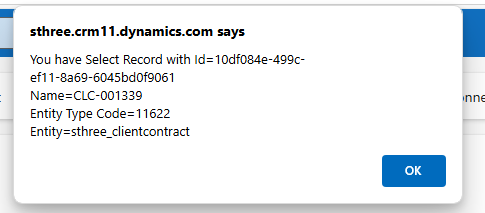
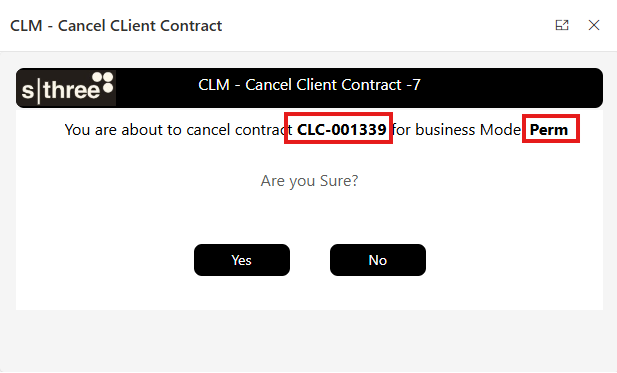
Once configured correctly, the custom page will appear as a dialog showing the selected record properties:
Summary
The key differences when working with sub-grid selections are:
- Use
item[0]to access the selected item from the array - Access properties via
selectedItem.IdandselectedItem.TypeName - Use
SelectedControlSelectedItemReferencesas the CRM parameter in RWB - Add a
SelectionCountRuleenable rule